
How to Change EQ on iPhone
Introduction
Customizing the sound output on your iPhone can greatly enhance your listening experience. The EQ settings, when adjusted, can completely transform how music, podcasts, and videos sound on your device. Yet, many users are unsure of where to begin. This guide will equip you with the knowledge to modify these settings, ensuring that your iPhone provides the audio experience you desire.
Understanding EQ Settings on iPhone
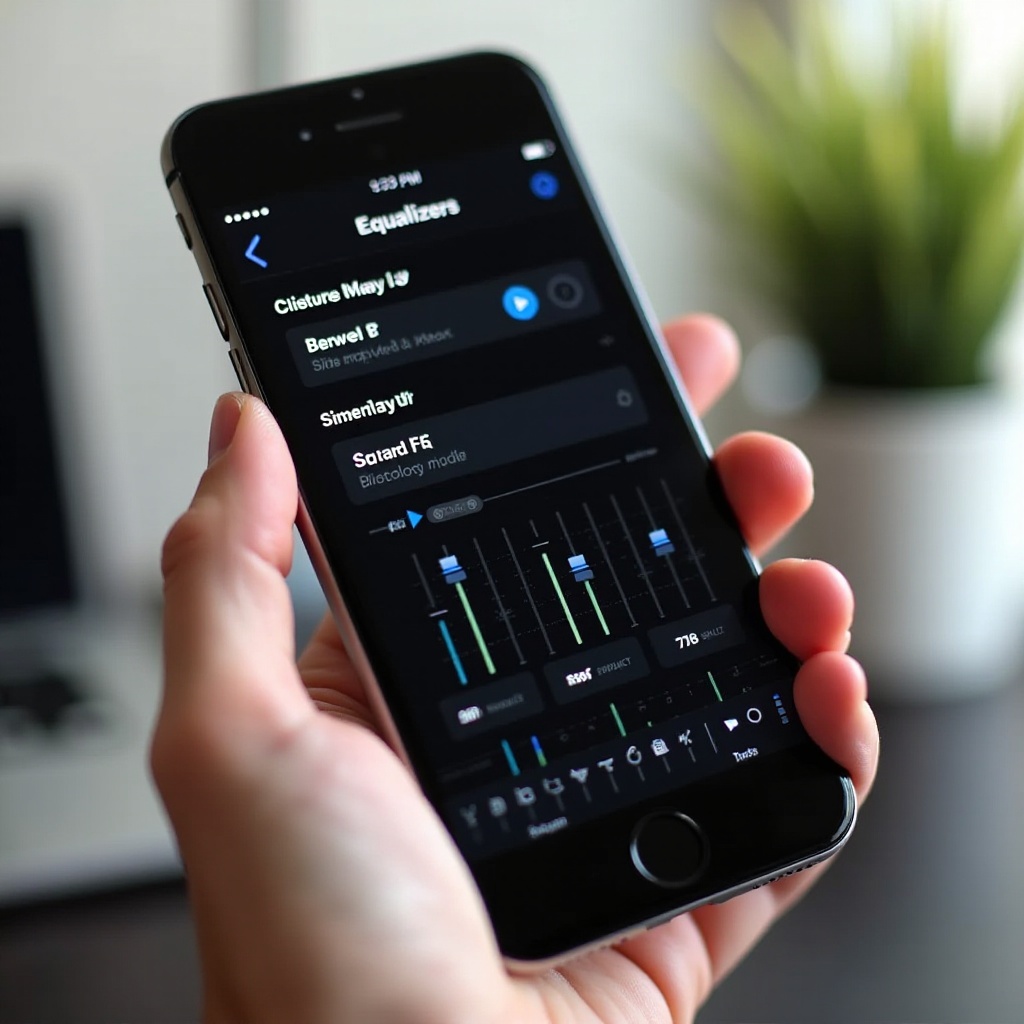
EQ, or Equalizer, settings allow you to adjust various frequencies across the sound spectrum to improve audio output. Whether you want to emphasize bass for a deeper audio experience or enhance treble for clearer sound, proper EQ adjustments can make a noticeable difference. On iPhones, the EQ presets specifically affect how audio is experienced through the Music app, thereby impacting your overall auditory experience.
Default EQ Presets on iPhone
Apple includes several built-in EQ presets such as Bass Booster, Classical, Dance, Electronic, and more, each designed to enhance specific types of audio content. Understanding what each preset offers allows you to select the one that best fits your listening habits. Although designed to cater to a broad spectrum of preferences, those craving more customized solutions might find these presets somewhat limiting. This is where third-party applications enter the scene, offering more precise control.
Step-by-Step Guide to Changing EQ on iPhone
If you’re new to changing EQ settings on your iPhone, the process is simple:
- Launch the ‘Settings’ app on your device.
- Scroll to find and tap ‘Music’.
- Select ‘EQ’ to display available presets.
- Choose the preset that aligns with your listening preference.
After selecting a preset, listen to a song or audio clip to test the changes. You can cycle through presets until you find your desired setting. If you require further customization, the iPhone’s native options may not suffice, leading us into the realm of third-party apps.
Using Third-Party Apps for Advanced EQ Customization
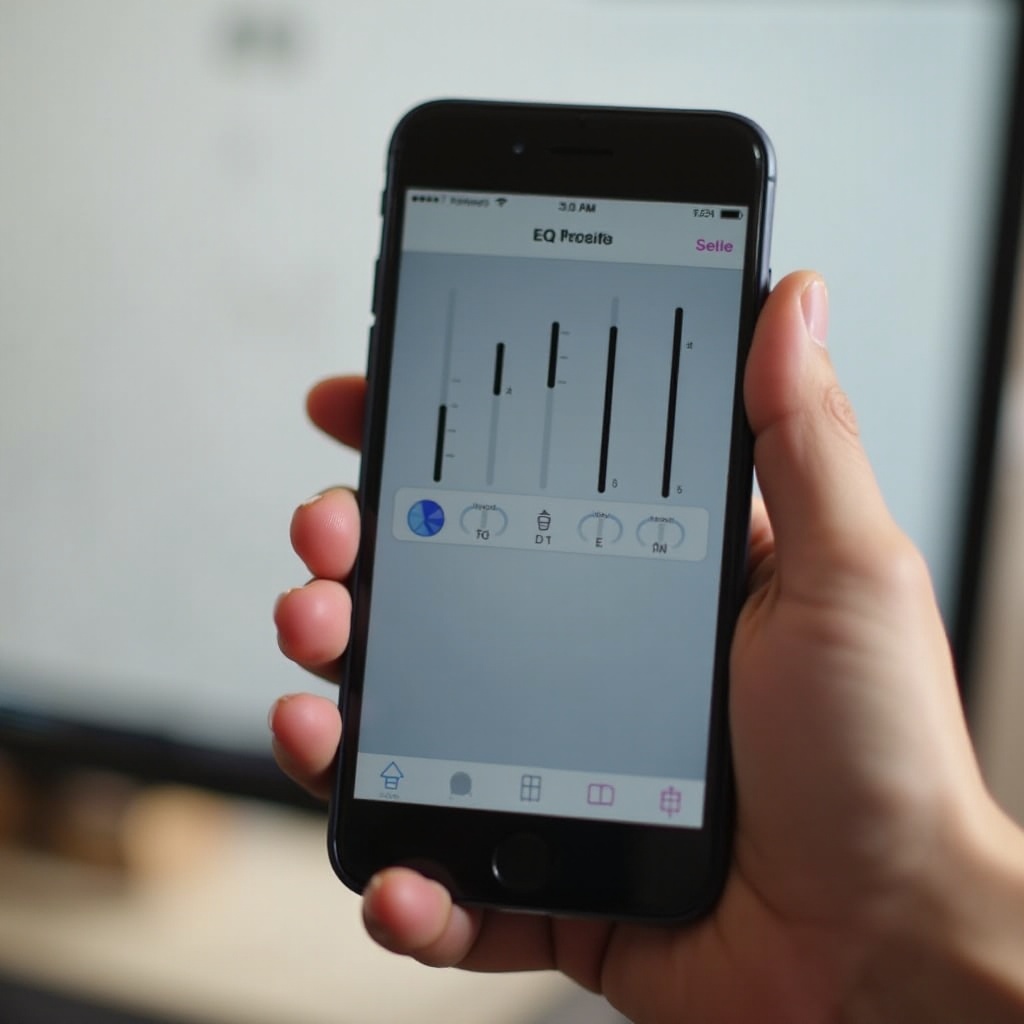
For those seeking advanced EQ settings, third-party apps offer enhanced capabilities beyond Apple’s defaults. Apps like Equalizer+, Boom, and EQ Player provide in-depth control over each sound frequency, enabling you to tailor your audio meticulously. To begin:
- Open the App Store on your iPhone.
- Search for EQ applications and install one meeting your requirements.
- Launch the app and follow the on-screen instructions to start crafting your sound profile.
These apps allow the creation of custom sound profiles, providing a more dynamic and engaging listening experience. Always verify that the app is compatible with your preferred audio content to maximize its utility.
Troubleshooting Common EQ Problems
Encountering issues when modifying EQ settings is common but usually manageable. Typical problems include:
- ‘EQ settings not affecting specific apps’: Certain music apps might override iPhone’s EQ settings with their own processing logic.
- ‘Changes not saving’: Ensure your iPhone’s iOS is updated.
- ‘Distorted sound quality’: Opt for different presets or restart your device to resolve such issues.
Most issues can be resolved by toggling settings, rebooting your device, or ensuring all relevant software is up to date.
Tips for Choosing the Right EQ Setting
Finding the optimal EQ setting is crucial for an ideal audio experience. Here are some tips:
- To enrich genres like hip-hop or electronic music, try the ‘Bass Booster’ or ‘Dance’ presets.
- Classical music enthusiasts might prefer the ‘Classical’ preset for better instrument definition.
- Test various settings to comprehend their influence on diverse audio forms.
By aligning your EQ settings with your music taste, you can enjoy a fully customized listening experience.
Conclusion
Adjusting the EQ on your iPhone can significantly improve your audio enjoyment. By mastering both the default presets and exploring third-party apps, you can tailor your audio output to your liking. Take the time to experiment with these settings; it only takes a few moments to enhance your sound experience considerably.
Frequently Asked Questions
How do I change EQ on an iPhone without a Music app?
The EQ settings on the iPhone mainly influence the Music app, but third-party apps can offer device-wide EQ modification affecting all audio outputs.
Can I create custom EQ settings on my iPhone?
While you cannot create custom EQ settings directly through the iPhone’s settings, third-party apps allow for personalized and saved EQ profiles.
Why is my EQ setting not working on some apps?
Certain apps have custom audio processing settings that might bypass the iPhone’s EQ settings—check for internal EQ options or consider using third-party apps for more control.