
How to Sync Messages on iPad with Your Phone Number
Introduction
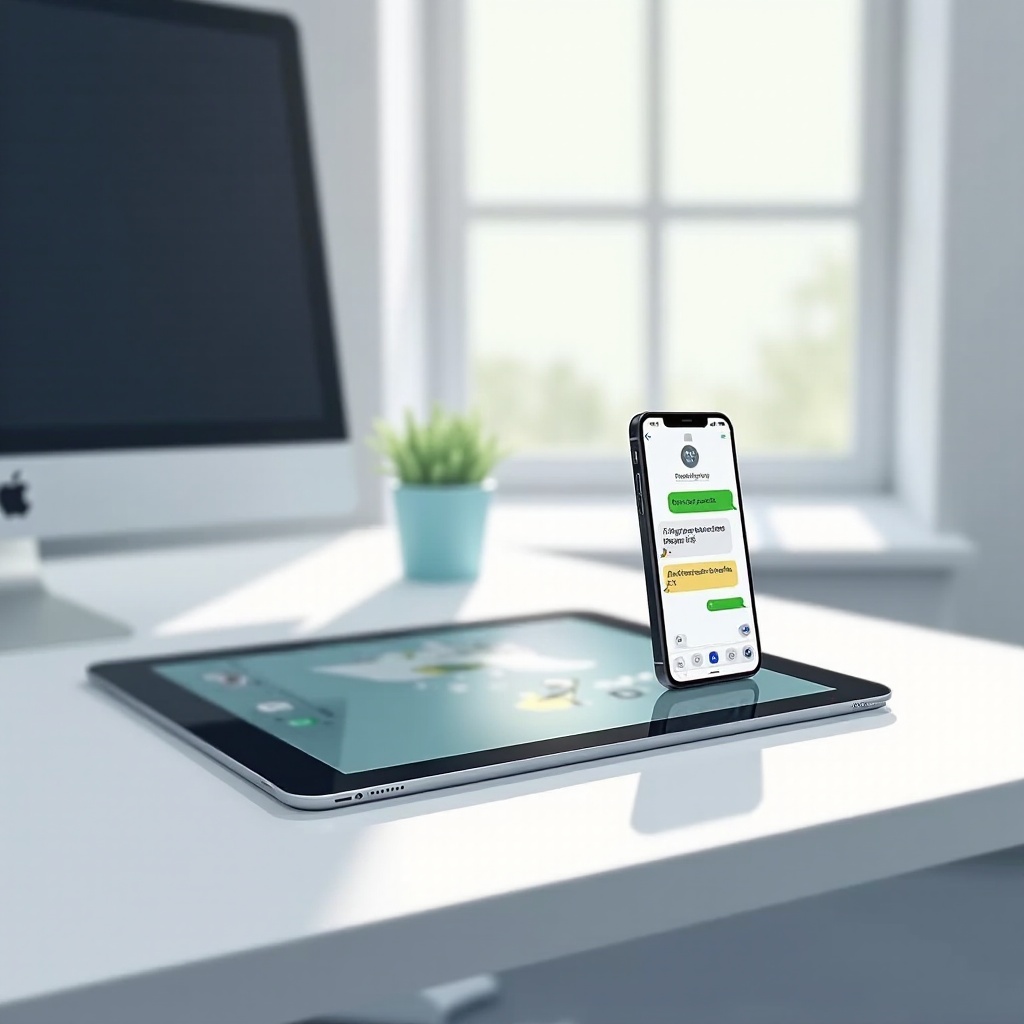
Synchronizing your messaging between devices is not only convenient but also a great way to stay productive. Imagine checking your messages on your iPad with the same phone number you use for your iPhone. Sounds ideal, right? This article will guide you through the process of receiving messages on your iPad using your phone number, providing clear steps and troubleshooting advice.
Understanding Messaging on iPad
Apple’s iMessage service has revolutionized the way we communicate within its ecosystem. However, it’s essential to clarity the roles of iMessage and SMS. While iMessage operates over Wi-Fi or cellular data, SMS depends on the mobile network. Both can be used to receive messages on your iPad once properly set up.
To ensure seamless communication, it’s crucial that your Apple ID matches across your devices. Without a consistent Apple ID, messages won’t sync. Ensure your phone number is associated with your iMessage account, as this is pivotal for receiving messages on your iPad.

Step-by-Step Guide to Setting Up Messages on iPad
- Connect Your Apple ID:
- Navigate to ‘Settings’ on your iPad.
- Select your name to open Apple ID settings.
-
Verify you are signed in with the identical Apple ID as your iPhone.
-
Enable iMessage and SMS Forwarding on iPhone:
- Open ‘Settings’ on your iPhone.
- Select ‘Messages’ and ensure ‘iMessage’ is activated.
- Tap ‘Text Message Forwarding’.
-
Activate your iPad in the list of devices.
-
Assign Your Phone Number for Messaging:
- On your iPad, go to ‘Settings’ and then ‘Messages’.
- Ensure ‘iMessage’ is activated.
-
Confirm your phone number is selected under ‘Send & Receive’.
-
Confirm Settings and Test Messaging:
- Send a test message to verify the setup.
- Ensure your iPad displays these messages as expected.
By following these steps, you can effectively set up your devices to receive messages, increasing your connectivity.
Troubleshooting Common Issues
If your setup doesn’t yield the desired results, various solutions could address the issue.
Begin by checking the network connection on your iPad. Messages require active Wi-Fi or cellular data connections. If syncing issues persist, log out of your Apple ID on both devices, then log back in. This often resolves many minor syncing problems.
A potential fix for issues related to network disruptions involves resetting your iPhone’s network settings. Go to ‘Settings’, choose ‘General’, then ‘Reset’, and select ‘Reset Network Settings’. This clears any network-related blockages affecting message syncing.
Exploring Alternative Messaging Apps
While iMessage is popular among Apple users, various third-party apps offer extended functionalities you might find appealing.
Download applications like WhatsApp, Facebook Messenger, or Telegram from the App Store. These apps offer cross-platform compatibility, allowing you to communicate with non-Apple users seamlessly. Each app requires a simple installation and setup process and provides comprehensive features, such as encrypted messaging and media sharing.
Security and Privacy Considerations
As you enjoy the convenience of receiving messages on different devices, it’s imperative to ensure your privacy and data security.
Implement two-factor authentication on your Apple ID to add an additional layer of security. This practice protects your data, especially if your devices are misplaced or mishandled. It also mitigates the risk of unauthorized access to your personal information.
Conclusion
Connecting your iPad and iPhone for a seamless messaging experience is not only convenient but also enhances your productivity. By following the steps outlined in this article, you can enjoy a synchronized messaging life. Regular checks and updates are recommended to maintain optimal operation and functionality of your setup.
Frequently Asked Questions
Why can’t I receive messages on my iPad even after setting it up?
Double-check your Apple ID, phone number listing, and network settings on both devices.
How do I check if my phone number is correctly linked to my iPad?
Go to ‘Settings’ > ‘Messages’ > ‘Send & Receive’ on your iPad, and ensure your phone number is checked.
Is it possible to receive messages on my iPad without having an iPhone?
Yes, by using third-party messaging apps available on the App Store.