
How to Connect Your Treadmill to Your iPhone for an Enhanced Workout Experience
Introduction
Transforming your workout routine can be as simple as connecting your treadmill to your iPhone. With this setup, fitness data becomes centralized, progress tracking easier, and engaging apps can make every run a new experience. This guide provides detailed instructions on creating an integrated and seamless workout setup.
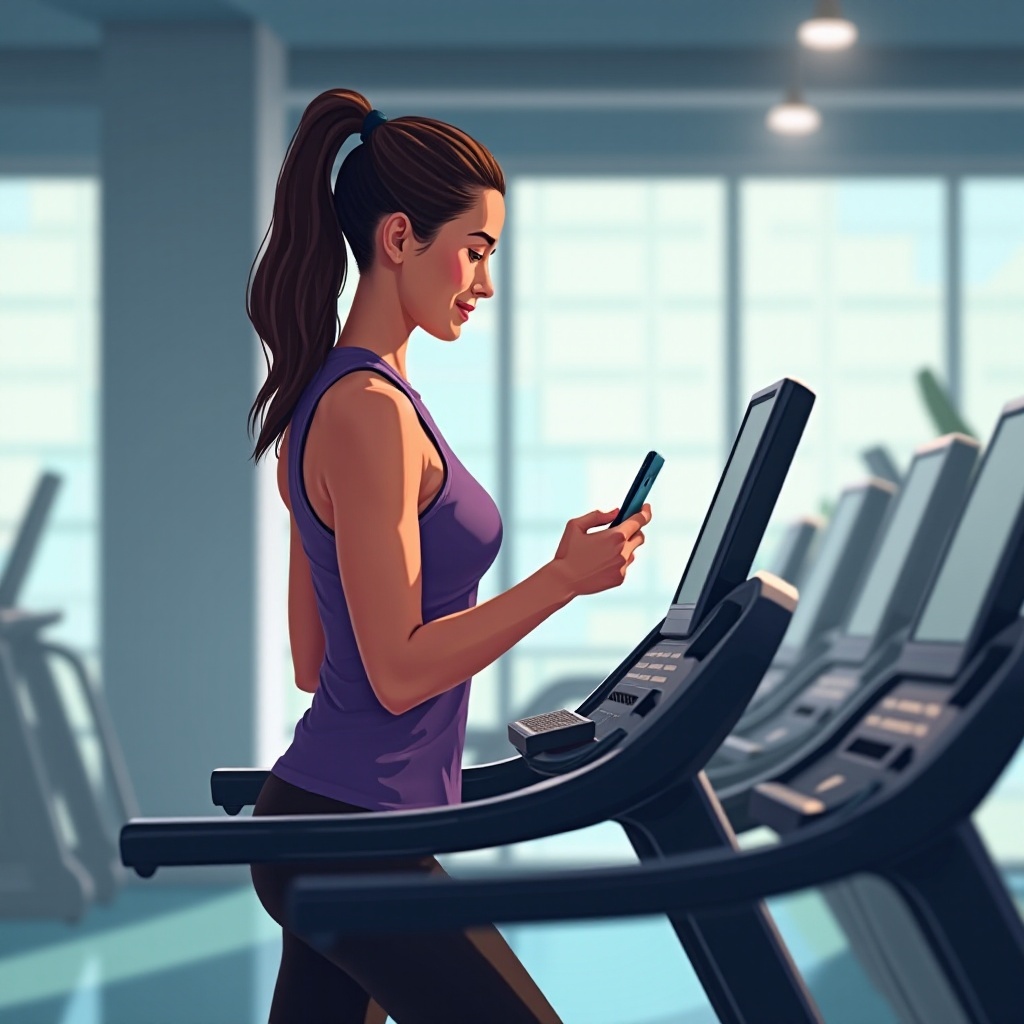
Understanding Treadmill and iPhone Compatibility
Compatibility is the cornerstone of a successful connection between your treadmill and iPhone. Not every treadmill is equipped with the necessary wireless technology. To check, refer to your treadmill’s manual or the manufacturer’s website for details about Bluetooth or Wi-Fi capabilities. Ensure these features support iOS devices as the first measure in your setup process.
Preparing Your Devices for Connection
Proper preparation can significantly smooth out the connection process. Start by ensuring both your treadmill and iPhone are ready.
– Checking Treadmill Specifications: Verify if your treadmill’s Bluetooth or Wi-Fi capabilities are enabled. If updates are required, complete them, ensuring compatibility and functionality.
– Updating iPhone Software: Make sure your iPhone’s iOS version is current. You can do this by going to Settings > General > Software Update and installing any available updates.
Now that your devices are prepped, you’re ready to connect them and enhance your fitness routine.
Step-by-Step Guide to Connecting Your Treadmill to Your iPhone
Follow these steps to establish a connection between your treadmill and iPhone effectively:
- Bluetooth Connection Steps:
- Activate your treadmill’s Bluetooth and make it discoverable.
- On your iPhone, tap Settings > Bluetooth to turn it on.
- Look for your treadmill in the list and select it.
-
Confirm the connection on both devices if prompted.
-
Wi-Fi Connection Options:
- Use the treadmill’s settings menu to connect it to your home Wi-Fi.
- Open your chosen fitness app on your iPhone.
-
Use the app’s instructions to pair the devices via the network.
-
Troubleshooting Connection Issues:
- If you encounter problems, restart both devices and repeat the steps.
- Refer to your treadmill’s manual for specific troubleshooting guidance if needed.
With your devices connected, it’s time to choose apps that can maximize your treadmill-iPhone synergy.
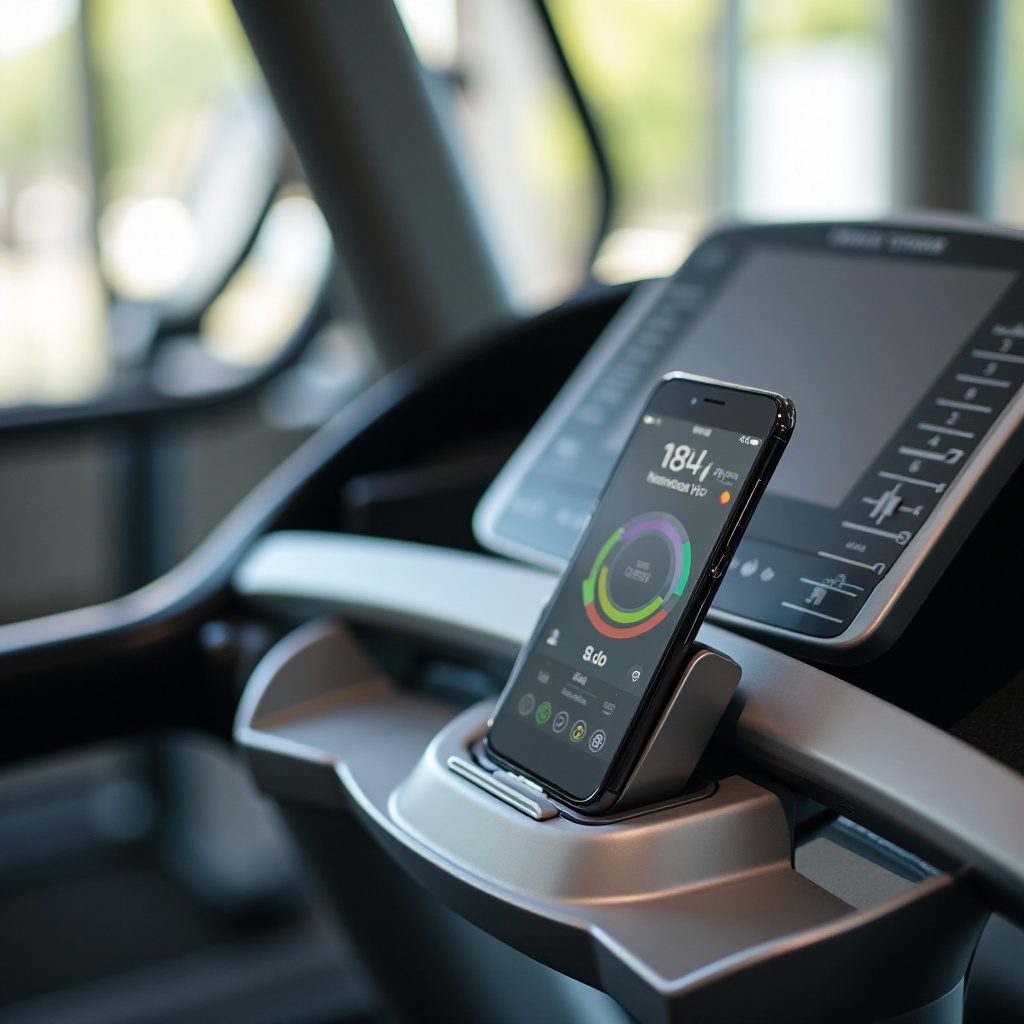
Best Apps for Connecting Your Treadmill to Your iPhone
Using the right apps can elevate your treadmill workouts. These applications track progress, provide motivation, and add interactive elements to your routine.
– Popular Fitness Apps for Treadmill Workouts:
– RunSocial: Offers real-time virtual running courses complementing your treadmill pace.
– Zwift: Engages users in a virtual world with races and community events.
- Features to Look for in an App:
- Real-time data tracking is crucial for monitoring performance.
- Integration with other devices like the Apple Watch provides a full-body workout experience.
Selecting a suitable app enhances data tracking and adds layers of entertainment, helping you stay motivated on your fitness journey.
Benefits of a Connected Workout Experience
Connecting your treadmill with your iPhone comes with numerous advantages, primarily through enhanced data monitoring.
– Tracking and Analyzing Workout Data: A connected experience allows comprehensive monitoring of metrics, including speed, distance, and heart rate. This consolidated data offers insights into your fitness progress.
– Motivational Features and Sharing Options: With some apps, you can share achievements on social media or engage in competitive challenges, which can boost your motivation and accountability.
Through these benefits, a connected workout takes fitness from a solitary regimen to a dynamic, engaging experience.
Troubleshooting and Maintenance Tips
Minor connectivity issues can arise, but maintaining your devices can ensure sustained performance.
– Common Connectivity Issues: Occasionally, signals drop due to distance or interference. Ensure your devices are near each other and free of obstructions.
– How to Maintain a Stable Connection: Regularly update devices to their latest software versions. Also, avoid common interference issues by limiting other wireless device use near your treadmill.
These tips aid in maintaining a reliable treadmill-iPhone connection, vital for an uninterrupted workout experience.
Conclusion
The connection between your treadmill and iPhone can revolutionize your workouts, adding both data-driven insights and compelling engagement to every session. By following these detailed steps, you’ll ensure a seamless connection, maximizing the potential of your fitness technology. Leverage the capabilities of modern apps and devices to transform ordinary routines into extraordinary workouts.
Frequently Asked Questions
How can I tell if my treadmill is compatible with my iPhone?
Check the user manual or manufacturer’s website to see if your treadmill supports Bluetooth or Wi-Fi connections, necessary for iPhone integration.
What should I do if my devices won’t connect?
Restart both devices, ensure they are within range, and check that no other devices are interfering. Consult your treadmill’s manual for specific troubleshooting.
Can I connect multiple apps to my treadmill at the same time?
Usually, only one app can utilize the connection actively. However, some apps can share data or offer integrations for simultaneous use.