
How to Connect Alexa to iPhone Bluetooth: A Comprehensive Guide
Introduction
Unlocking the full potential of your smart home technology includes mastering the connection between Alexa and your iPhone via Bluetooth. Integrating these devices allows you to enjoy hands-free control, manage your smart home environment effortlessly, and streamline your tech experience for ultimate convenience. This article provides a detailed guide on how to establish this connection and includes troubleshooting advice to ensure it functions smoothly.
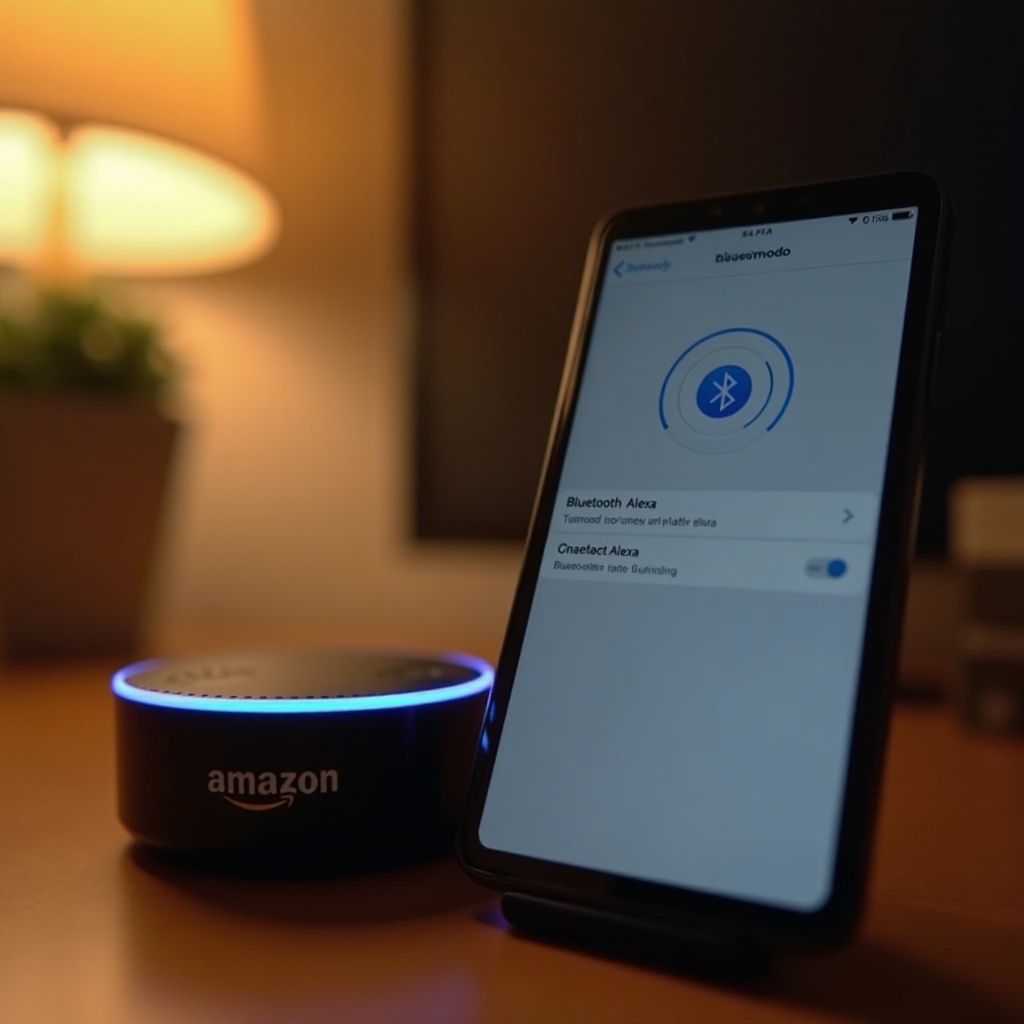
Why Connect Alexa to Your iPhone?
Combining Alexa with your iPhone brings more than just convenience; it opens up a new world of possibilities. With Alexa linked to your phone, you can manage calls, send messages, control your music, and automate various functions, all with your voice. This setup reduces the need to switch between devices, making your day-to-day operations seamless and efficient.
Having Alexa connected to your iPhone enhances not only your personal comfort but also the functionality of your smart devices. Imagine being able to manage your schedule, check your messages, or control your music without lifting a finger. This integrated experience optimizes your home and personal tech use, creating a more personalized lifestyle.
Understanding the Technology
What is Bluetooth and How Does It Work?
Bluetooth technology facilitates wireless data exchange over short distances, eliminating the need for physical cables. It works through short-range radio waves, typically up to a range of about 30 feet, to connect devices such as smartphones, speakers, and more. This makes Bluetooth the perfect solution for pairing your iPhone with Alexa.
Benefits of Connecting Alexa and iPhone via Bluetooth
The integration between Alexa and your iPhone using Bluetooth enhances operational efficiency and expands the functionality of both devices. Voice commands can activate Alexa’s extensive features directly off your iPhone, making interactions streamlined and effortless. This connection method not only simplifies device management but also increases usability.
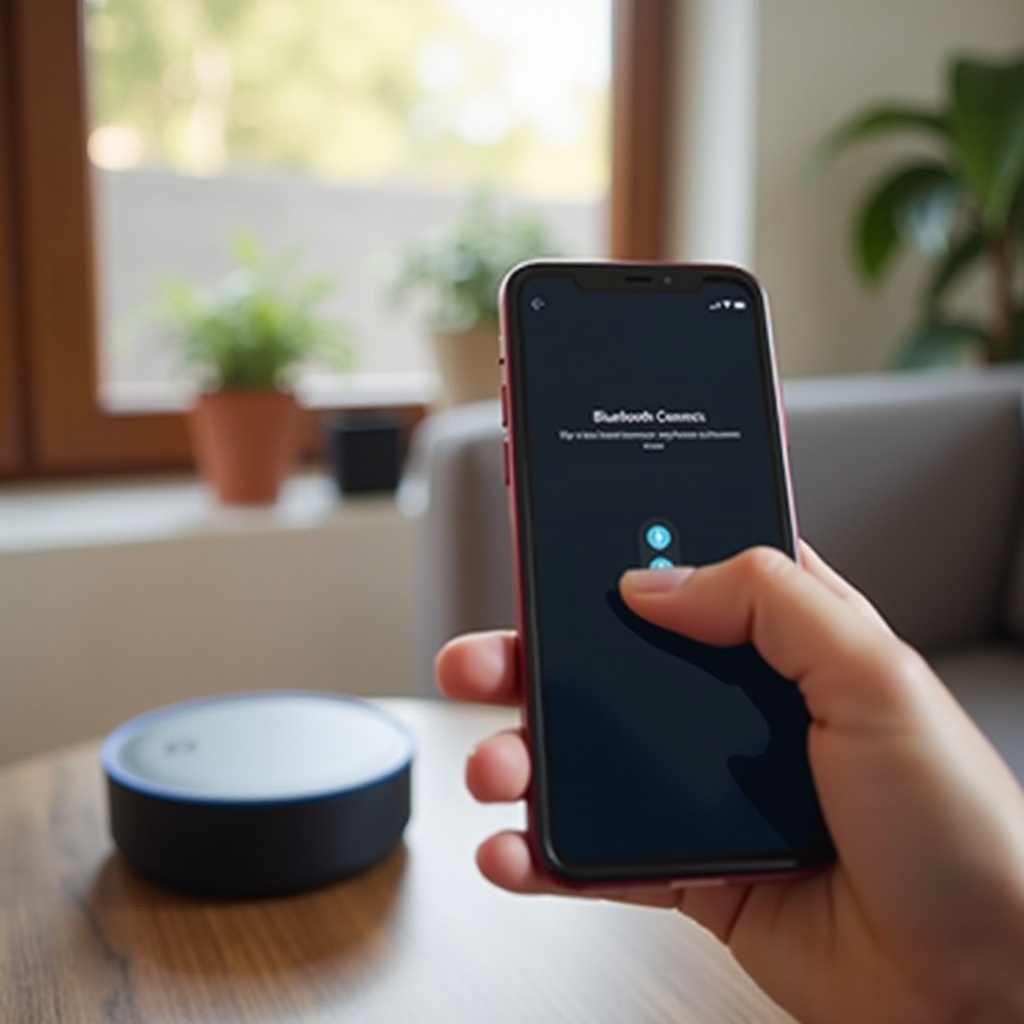
Preparing Your Devices for Connection
For a seamless Bluetooth pairing experience, ensuring your devices are compatible and up to date is crucial, setting the stage for a flawless connection.
Ensuring Compatibility: iPhone Models and Alexa Devices
Compatibility between your devices is the first step. Generally, any iPhone with iOS 10 or later supports Bluetooth and should pair with Alexa-enabled devices. Make sure your Alexa device is Bluetooth-compatible too. Consult product manuals or the manufacturer’s website to verify that both devices meet these requirements.
Updating Software for Optimal Performance
Software updates play a pivotal role in enhancing device performance and connectivity. Keep both your iPhone and Alexa devices updated to their latest software versions. For iPhones, go to ‘Settings > General > Software Update’ to download any available updates. Similarly, use the Amazon Alexa app to ensure your Alexa device runs on the latest firmware.
Step-by-Step Guide to Connecting Alexa to iPhone
With your devices prepared, follow these steps for a successful Bluetooth connection:
- Enable Bluetooth on Your iPhone:
- Open Settings on your iPhone.
-
Tap on Bluetooth and ensure it is turned on, allowing your iPhone to begin searching for devices.
-
Activate Pairing Mode on Alexa:
- Launch the Amazon Alexa app on your iPhone.
- Tap ‘Devices’ at the bottom of the screen.
- Select ‘Echo & Alexa’, then choose your Echo device.
-
Tap ‘Bluetooth Devices’ followed by ‘Pair a New Device’.
-
Connect the Devices Using the Alexa App:
- Find your Alexa device in the available devices list on your iPhone’s Bluetooth screen.
- Tap on the device name to connect.
- Alexa announces a successful connection and it will appear under ‘My Devices’ in your iPhone’s Bluetooth settings.
Troubleshooting Common Connectivity Issues
Even with a straightforward setup, some users might face connectivity challenges. Here are some solutions to address common issues:
Common Problems and Their Solutions
- Problem: Alexa does not appear on the list of available devices.
Solution: Ensure Alexa is in pairing mode and within range. Restart both devices and retry.
- Problem: Connection failed between devices.
Solution: Forget the Alexa device within your iPhone Bluetooth settings and initiate the pairing process again.
What to Do If Alexa Is Not Discovering Your iPhone
If your Alexa device isn’t discovering your iPhone, here are steps to follow:
- Ensure your iPhone is not connected to any other Bluetooth devices.
- Check that your devices are within close proximity, ideally within 30 feet.
- Restart both your iPhone and Alexa device, then attempt to connect again.
Enhancing Your Connected Experience
Once your devices are connected, make the most out of the integration for an enhanced experience.
Best Practices for Maintaining a Stable Bluetooth Connection
- Keep both devices nearby to maintain a strong connection.
- Turn off Bluetooth on all other devices to prevent interference.
- Periodically check for software updates to keep devices running smoothly.
Exploring Additional Alexa Features with iPhone Connectivity
Explore beyond basic connectivity by utilizing Alexa for hands-free phone calls, sending texts, controlling music, and managing other smart home devices. The Amazon Alexa app offers many skills and integration options, transforming Alexa into a versatile personal assistant.
Conclusion
By successfully connecting Alexa to your iPhone via Bluetooth, you enhance both practicality and efficiency in your smart home setup. Following this comprehensive guide, you can navigate the setup and troubleshooting process with ease. This connection not only simplifies your daily routines but also expands the usability of your devices, offering a richer, more connected experience.
Frequently Asked Questions
Can I use Alexa with multiple iPhones?
Yes, Alexa can pair with multiple iPhones. Follow the pairing process for each phone, but remember Alexa connects to only one at a time.
How can I improve Bluetooth range and stability?
Enhance Bluetooth performance by keeping devices close, minimizing obstructions, and reducing Wi-Fi interference.
What should I do if my devices won’t connect after an update?
Restart devices after updates, verify all settings, and reconnect. If issues persist, consult customer support.