
The Ultimate Guide to Storing Photos on External Hard Drives
Introduction
Storing digital photos securely is crucial for preserving cherished memories. External hard drives offer a reliable solution to this need. With excellent portability, cost efficiency, and ample storage options, these devices are ideal for backing up your photos. In this guide, we will explore how to select, organize, and maintain an external hard drive for photo storage effectively.
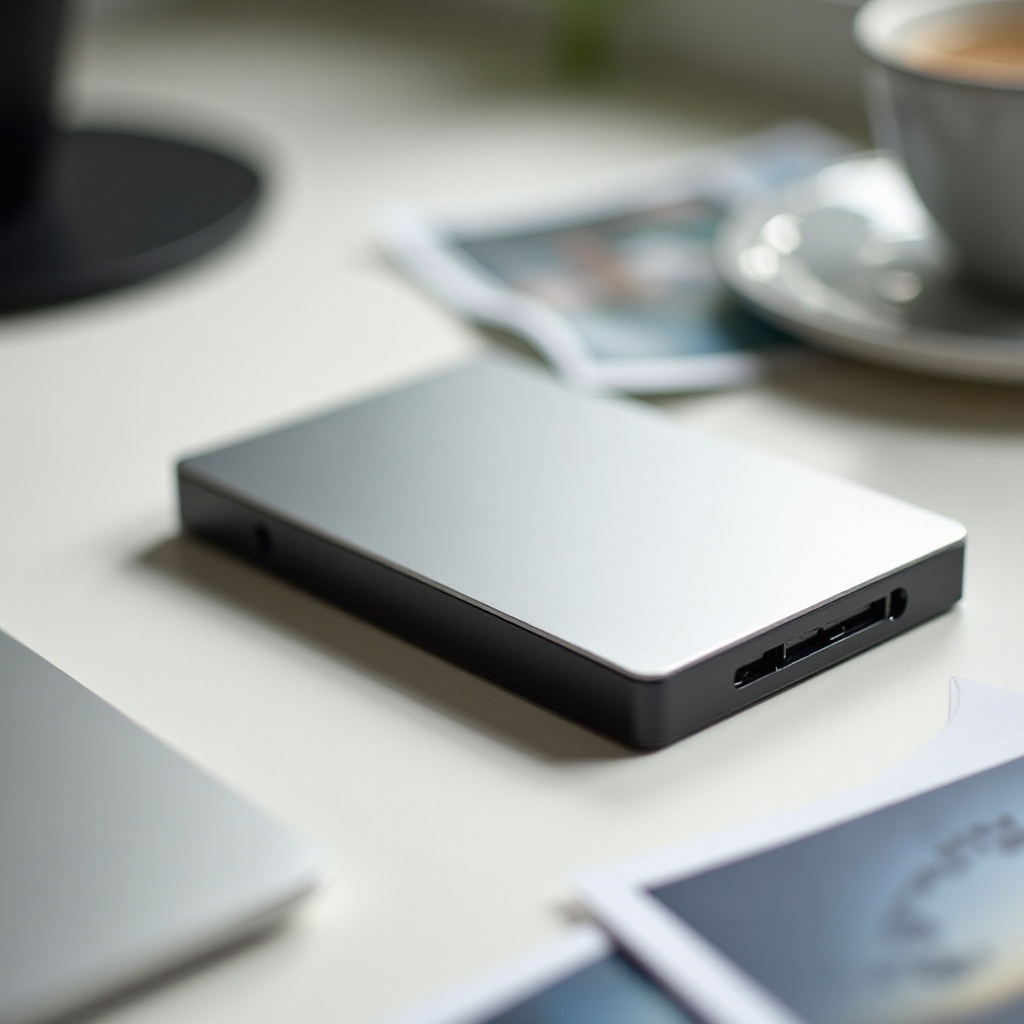
Why Opt for External Hard Drives for Photo Storage?
External hard drives offer unique benefits that make them a preferred choice for photo storage.
- Portability and Convenience: Easily carry your photos anywhere with an external hard drive. These compact devices allow instant access to your photos, whether at home or traveling.
- Cost-Effectiveness and Storage Capacity: External hard drives provide substantial storage space at a one-time cost, which is economical compared to cloud storage subscriptions.
- Data Security and Accessibility: By storing photos on an external drive, you control access. Unlike cloud solutions, you don’t require internet access to retrieve your photos, ensuring they are consistently available.
With these advantages in mind, selecting the right external hard drive becomes crucial to make the most of these benefits.
Choosing the Right External Hard Drive for Photos
Selecting the best external hard drive aligns with understanding your needs and evaluating available features.
- Key Features to Consider:
- Capacity: Evaluate the storage space needed according to the size of your photo library, staying mindful of future growth.
- Speed: Ensure the drive supports fast data transfer rates (USB 3.0 or Thunderbolt) for efficient uploads.
-
Durability: Choose drives with shockproof or water-resistant features, especially if travel is frequent.
-
Comparing HDD vs. SSD for Photography:
- HDD (Hard Disk Drive): Cost-effective for large storage needs, suitable for voluminous photo collections.
-
SSD (Solid State Drive): Offers superior speed and durability, though at a higher cost than HDD for the same capacity.
-
Recommended Brands and Models for 2024: Rely on recent reviews and expert recommendations to find the best suitable drive for your requirements and budget.
A well-chosen external hard drive sets the stage for organizing and transferring your photos efficiently.
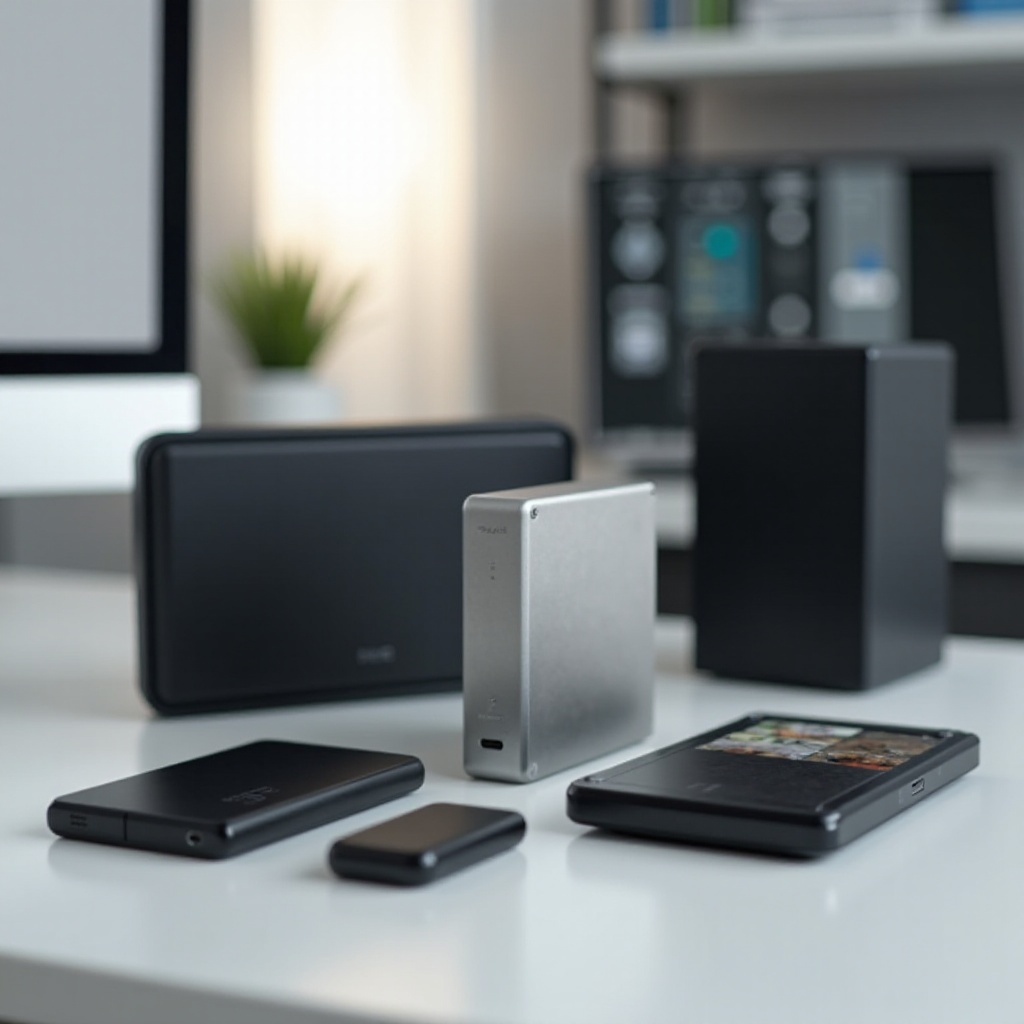
Preparing Your Photos for Transfer to an External Hard Drive
Preparation is a vital step in establishing a solid photo storage strategy.
- Organizing Photos Before Transfer: Create a systematic folder structure before transferring. This organization helps in efficiently locating specific images later, saving you time and frustration.
- File Formats and Their Importance: Use the optimal file format for storage. JPEGs are compact for general use, while RAW files are ideal for high-quality editing needs.
- Required Tools and Software for the Process: Utilize photo management tools to automate and streamline the organization and backup processes.
Following these organizational steps ensures a smooth transfer process to your chosen external hard drive.
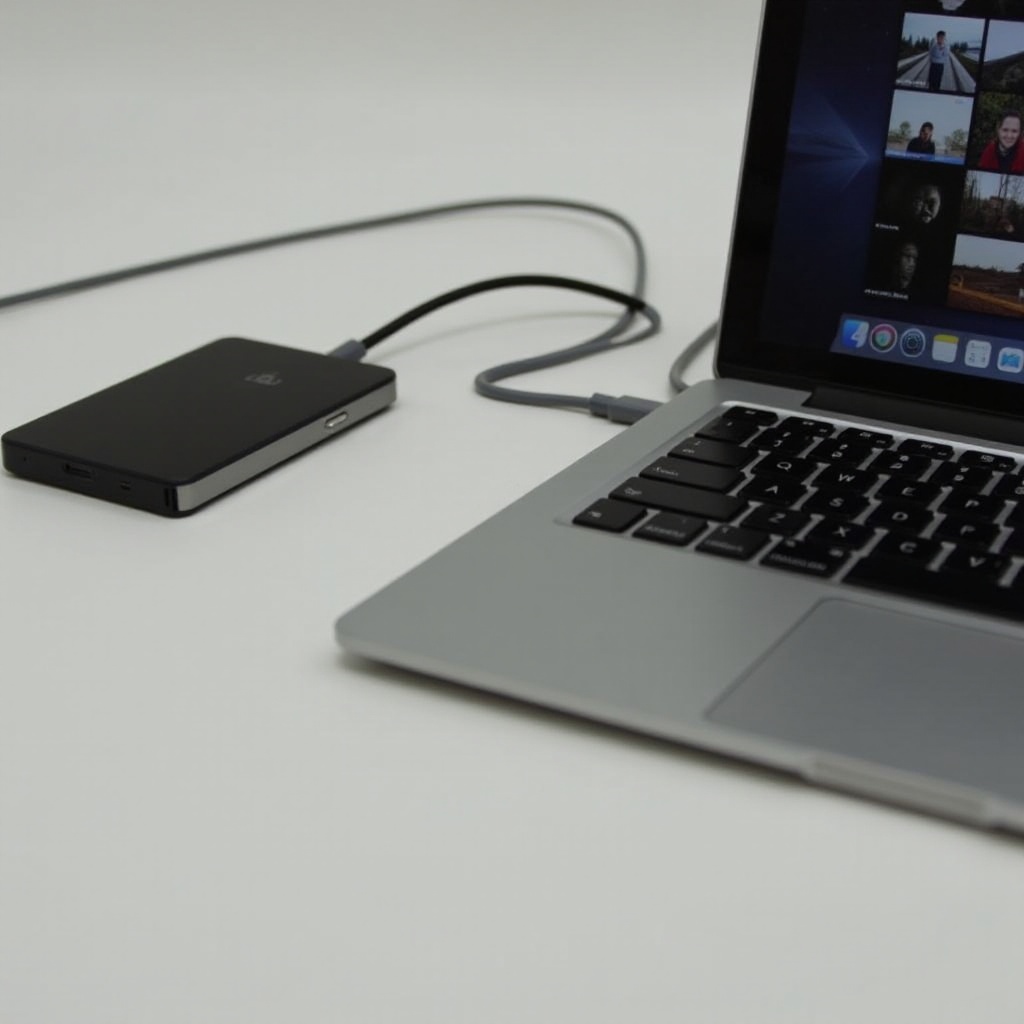
How to Transfer and Organize Photos on an External Hard Drive
Transferring and organizing your photos correctly lays the foundation for easy access and management.
- Step-by-Step Guide for Windows Users:
- Connect the external hard drive to your PC using a USB port.
- Open File Explorer, select the photos you wish to transfer.
-
Use the drag-and-drop method or copy-paste to move items to the external hard drive.
-
Step-by-Step Guide for macOS Users:
- Connect the drive to your Mac.
- In Finder, select the photos for transfer.
-
Drag the selected files to the external drive listed in ‘Devices’.
-
Best Practices for Creating Folder Structures:
- Implement clear, consistent naming conventions (e.g., Year-Month-Event) to facilitate easy retrieval.
- Regularly update folder structures as new photos are added.
With your photos successfully organized and transferred, ensuring the hardware’s longevity and security is next.
Ensuring the Safety and Longevity of Your External Hard Drive
Protecting your drive physically and digitally safeguards your precious photos.
- Regular Maintenance and Check-Ups: Perform routine checks to identify errors and update drive firmware for optimal performance.
- Physical Safety Measures: Store in a cool, dry location, and use protective casings during transportation to prevent damage.
- Security Features and Data Encryption: Enable password protection and encryption to enhance data security, keeping unauthorized access at bay.
Maintaining your drive’s health ensures it remains a steadfast solution for backing up your memories. Exploring alternative solutions can further bolster security.
Comparing External Hard Drives with Alternative Storage Solutions
While external hard drives are formidable backup tools, exploring other storage options can provide additional security.
- External Hard Drives vs. Cloud Storage: Cloud storage offers remote access and automatic backups, although dependent on an internet connection and subscription fees.
- Benefits of Using Both for Redundancy: Employing both methods ensures your photos are doubly secure, combining the benefits of local and remote storage.
- Future Trends in Photo Storage: Stay updated on innovations like increased SSD affordability and new hybrid storage solutions.
Taking a comprehensive approach to photo storage maximizes security and accessibility.
Conclusion
Storing photos on an external hard drive is a practical, reliable method to protect cherished memories. By choosing wisely, organizing meticulously, and maintaining your storage device, you ensure your digital collections are safe and accessible. Combine different storage strategies for enhanced protection and regularly adapt your approach to meet evolving needs and technology.
Frequently Asked Questions
How often should I back up my photos to an external hard drive?
It’s advisable to back up your photos at least once a month to keep your records current.
Can I use the same external hard drive for different devices?
Yes, most drives support multiple devices. Ensure the drive is formatted correctly, such as using exFAT for compatibility with Windows and macOS.
What should I do if my external hard drive gets corrupted?
Stop using the drive to prevent further damage. Use recovery software or consult a professional for data retrieval. Always keep a secondary backup to avoid data loss.