
Troubleshooting Your Philips TV: A Comprehensive Guide to Common Problems
Introduction
When your Philips TV isn’t working, the situation can be inconvenient and frustrating. These televisions, admired for their innovative features and quality, can encounter issues from time to time. This guide offers practical steps to address common problems, helping you restore your TV’s functionality and enjoy your viewing experience with minimal downtime.

Power Problems
A non-responsive Philips TV might be suffering from power issues. First, ensure that it is plugged into a functional power outlet. If the power source is verified, the next step is checking the remote control; sometimes a simple battery replacement can resolve the issue.
If the TV remains off, performing a power cycle could be useful. Unplug the TV from the wall outlet, press and hold the power button for 15 seconds, then wait a minute before reconnecting it. This often addresses minor glitches by discharging residual power.
Once you’ve tackled the power issues, examining the TV’s display will ensure you’re ready for a superior viewing experience without interruptions.
Display Issues
Display problems, like a blank screen or picture distortions, require a methodical approach. Begin by ensuring all cables are firmly connected. Loose connections often lead to these symptoms.
Next, adjust your picture settings. Common adjustments involve changing the brightness, contrast, and picture mode. Also, consider conducting a firmware update through the settings menu, as this can resolve undetected bugs or glitches.
Resolving display issues is only part of the solution; addressing sound issues is equally crucial to restoring your full entertainment experience.
Sound Troubles
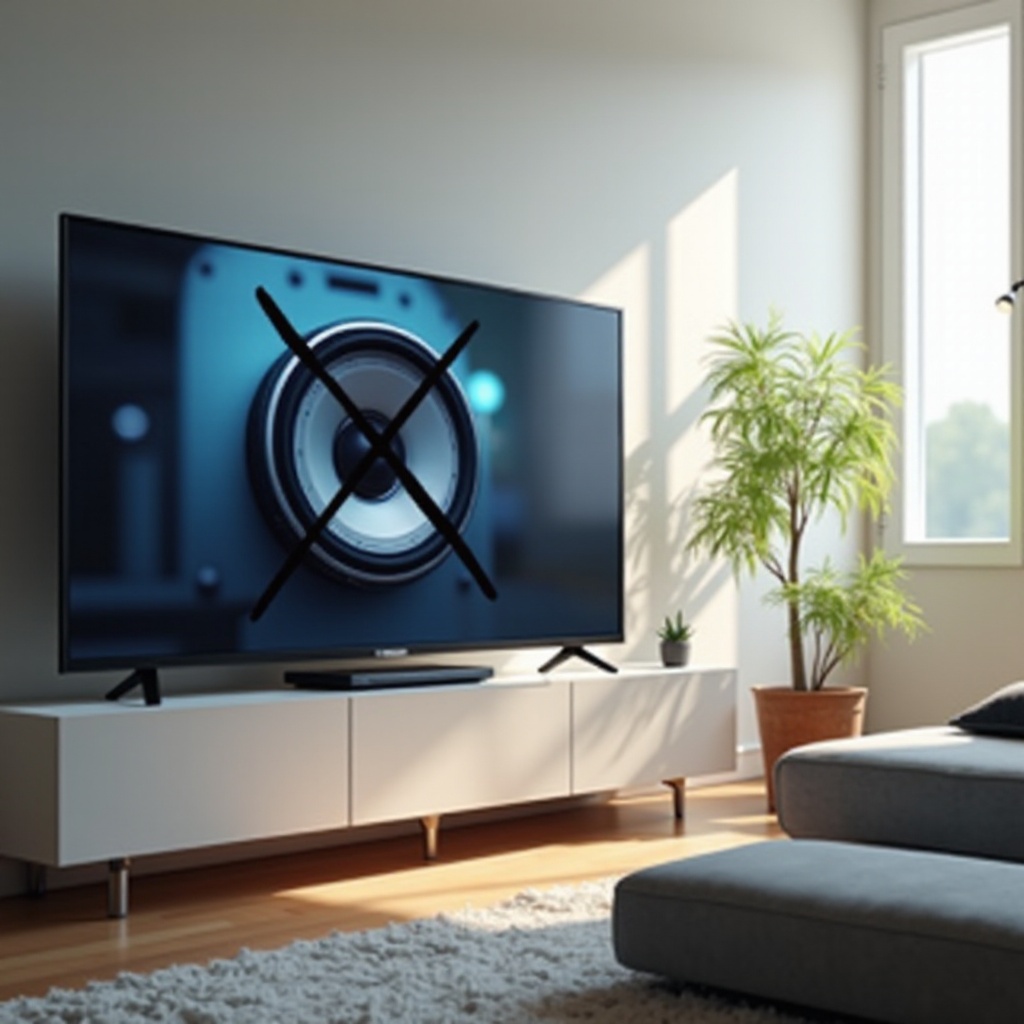
Sound issues can quickly overshadow viewing enjoyment. Start by checking the obvious: ensure the volume is up and the TV is not on mute.
Access the audio settings to ensure the correct output is selected, especially if external devices are connected. Inspect all related cables; a faulty or loose connection could easily disrupt sound transmission.
With sound issues managed, you can now turn your attention to connectivity to optimize your TV’s performance.
Connectivity Challenges
Connectivity is essential for a smart TV’s full function, especially with streaming services. Wi-Fi connection issues can often be resolved by restarting your router and ensuring your TV is correctly connected to the network.
For those using an Ethernet connection, confirm its functionality by testing the cable or trying a different device on the same connection. Similarly, HDMI connections should be double-checked for secure placement and proper input selection.
Once connectivity issues are resolved, enhancing your smart features and apps will ensure a seamless user experience.
Smart TV Features and App Glitches
Smart features sometimes experience lag or crashing. Begin by clearing app caches or data to improve speed. Regularly check for firmware and app updates to maintain optimal performance and feature enhancements.
With smart TV and app issues addressed, your Philips TV should now be functioning efficiently, delivering the high-quality experience you expect.
Conclusion
When your initial troubleshooting efforts do not rectify the issues, contacting Philips customer support can provide additional expert guidance. They can assist with problems beyond basic technical troubleshooting that may require professional repair.
Frequently Asked Questions
How do I reset my Philips TV if it’s not responding?
To reset, unplug the TV, wait for 10 minutes, then plug it back in and turn it on.
What should I do if my Philips TV has sound but no picture?
Check connection cables, ensure the TV is on the correct input source, and if needed, reset the picture settings.
Why is my Philips Smart TV freezing while streaming?
This might require checking your internet connection speed, updating the streaming app, or clearing the app’s cache to prevent freezing.