
How to Fix an iPhone That Shuts Off and Won’t Turn Back On
Introduction
Nothing is more frustrating than grabbing your iPhone, only to find that it’s completely unresponsive. Whether you’ve experienced a sudden shutdown or your device refuses to power back on, the root of the problem can often be traced to a few common causes. This guide is designed to help you diagnose the issue and provide actionable solutions to restore your iPhone’s functionality.
Common Causes Your iPhone Shuts Off
There are various reasons why your iPhone might shut off and refuse to turn back on, ranging from simple power issues to more complex hardware failures. Knowing these causes can guide your troubleshooting efforts:
- Battery and Power Issues: Often, the battery is the culprit. It might be depleted, damaged, or there could be issues with the charging system.
- Software Glitches: System bugs or corrupted applications can lead to unexpected shutdowns, affecting your device’s performance.
- Hardware Malfunctions: Physical damage or internal component failures can also cause such problems. Moisture exposure or overheating are common culprits.
Understanding these issues is the first step in determining the necessary fixes. Let’s move forward with basic diagnostic checks to help clarify the source of the problem.
Preliminary Checks to Diagnose the Problem
Before diving into repairs, perform these preliminary checks to identify the issue’s origin:
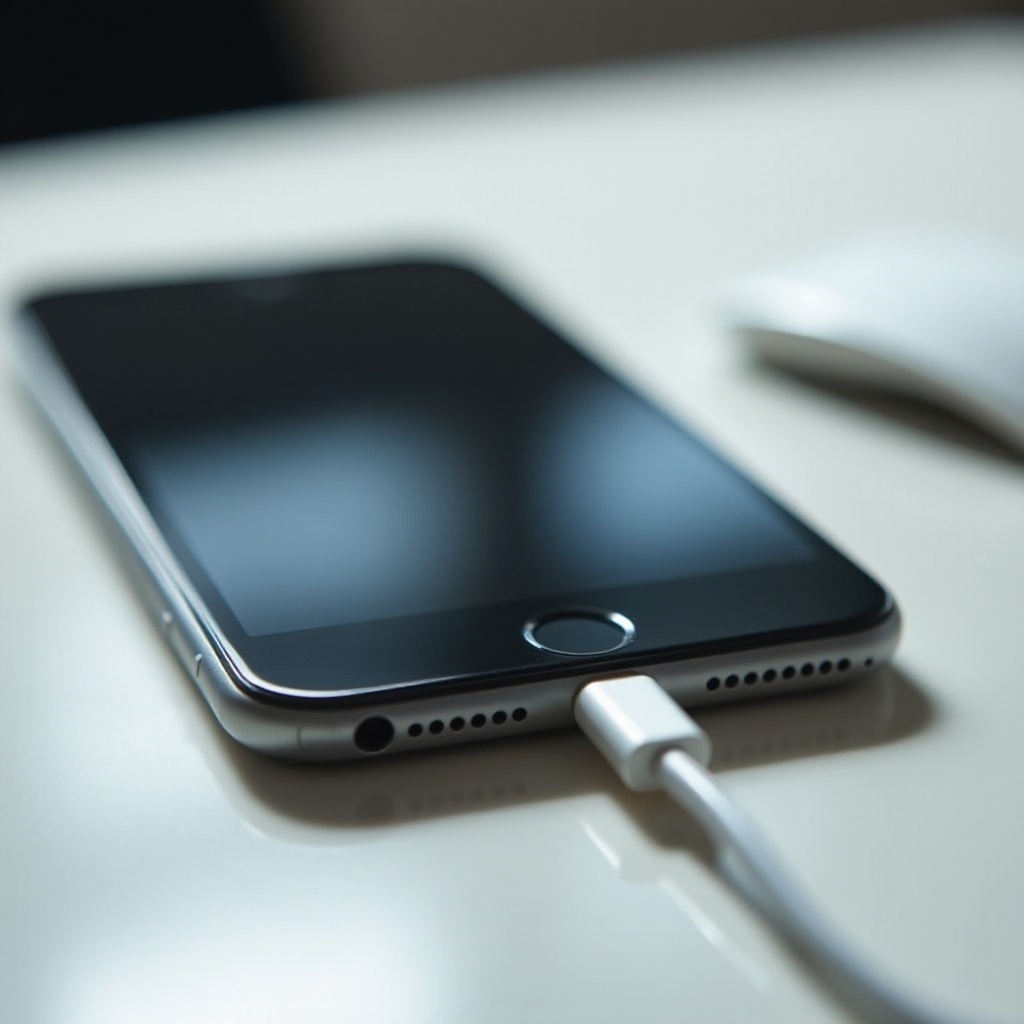
- Inspect Battery Health: Plug your iPhone into a charger and let it rest for at least 15 minutes. Look for a battery icon indicating it’s charging.
- Check for Physical Damage: Examine your phone for signs of damage such as dents, cracks, or evidence of water exposure, which can indicate internal issues.
- Confirm Software Version: If your phone powers on briefly, check if the software is up-to-date by navigating to Settings > General > About. An outdated software version can cause performance issues.
Once you’ve completed these checks, you’re better prepared to tackle solutions that could revive your iPhone’s functionality.

Effective Solutions to Turn Your iPhone Back On
If preliminary checks don’t resolve the issue, try these proven methods to get your iPhone up and running:
- Force Restart Your iPhone: A force restart can be a quick fix:
- For iPhone 8 and later, press and quickly release the Volume Up button, then the Volume Down button, and finally press and hold the Side button until the Apple logo appears.
- For iPhone 7 and 7 Plus, press and hold the Volume Down and Side buttons simultaneously until the Apple logo appears.
-
For iPhone 6s and earlier, press and hold both the Home and the Top (or Side) buttons until you see the Apple logo.
-
Proper Charging Techniques: Ensure you use an Apple-certified charger and try charging your iPhone from a different outlet or power source.
-
Try a Different Charging Cable or Adapter: Sometimes charging failures stem from faulty cables or adapters. Use a different set to rule this out as the cause of your problem.
If these steps don’t resolve the issue, consider using more advanced troubleshooting techniques detailed in the following section.
Advanced Troubleshooting Techniques
When basic solutions fail, you may need to use more advanced methods:
- Restore iPhone via iTunes/Finder:
-
Connect your iPhone to a computer with the latest version of iTunes or Finder and follow the on-screen instructions to perform a full restore.
-
Update iOS in Recovery Mode:
-
Connect your device to your computer, enter Recovery Mode by force restarting, hold until the Recovery Mode screen appears, and select ‘Update’ when prompted.
-
Use DFU Mode (Device Firmware Update):
- This is the most comprehensive way to restore your iPhone—connecting it to a computer, entering DFU mode, and following the instructions provided by iTunes or Finder.
If your device remains unresponsive, it’s advisable to seek professional support to avoid further damage.
When to Seek Professional Help
If your iPhone still won’t turn on after all troubleshooting steps, it may be time to consult professionals. Persistent issues despite all self-initiated efforts indicate deeper hardware failures or damage that requires expert evaluation. Contact Apple Support or visit a certified Apple repair store to have your device inspected and possibly repaired by specialists.
Conclusion
Fixing an iPhone that won’t turn on often demands patience and systematic testing. Identifying the potential causes and applying practical fixes can usually solve the problem. However, don’t hesitate to seek professional assistance when these methods fall short, ensuring your device receives the best care possible.
Frequently Asked Questions
Why does my iPhone shut off randomly?
Random shutdowns can be caused by battery issues, software glitches, or hardware failures. Keeping your iPhone updated and maintaining battery health can prevent this.
What should I do if my iPhone won’t charge?
Ensure that your charging cable and adapter are functional and debris-free. Try different power sources or outlets. If it still doesn’t charge, consider professional assistance.
How can I prevent my iPhone from turning off unexpectedly?
Regularly update iOS, monitor battery health, avoid physical and water damage, and ensure apps are not consuming excessive power.