
How to Connect AirPods to Steam Deck for an Enhanced Gaming Experience
Introduction
Using the Steam Deck opens up a world of portable PC gaming, and pairing it with wireless audio like AirPods can elevate that experience even further. Known for their exquisite sound quality and seamless Bluetooth connection, AirPods can transform your gaming sessions by providing clear, immersive audio without the hassle of wires. This guide will teach you how to connect your AirPods to the Steam Deck and enjoy a flawless gaming experience.
Understanding Compatibility
To start your journey with AirPods and the Steam Deck, knowing how these devices interact through Bluetooth technology is crucial.
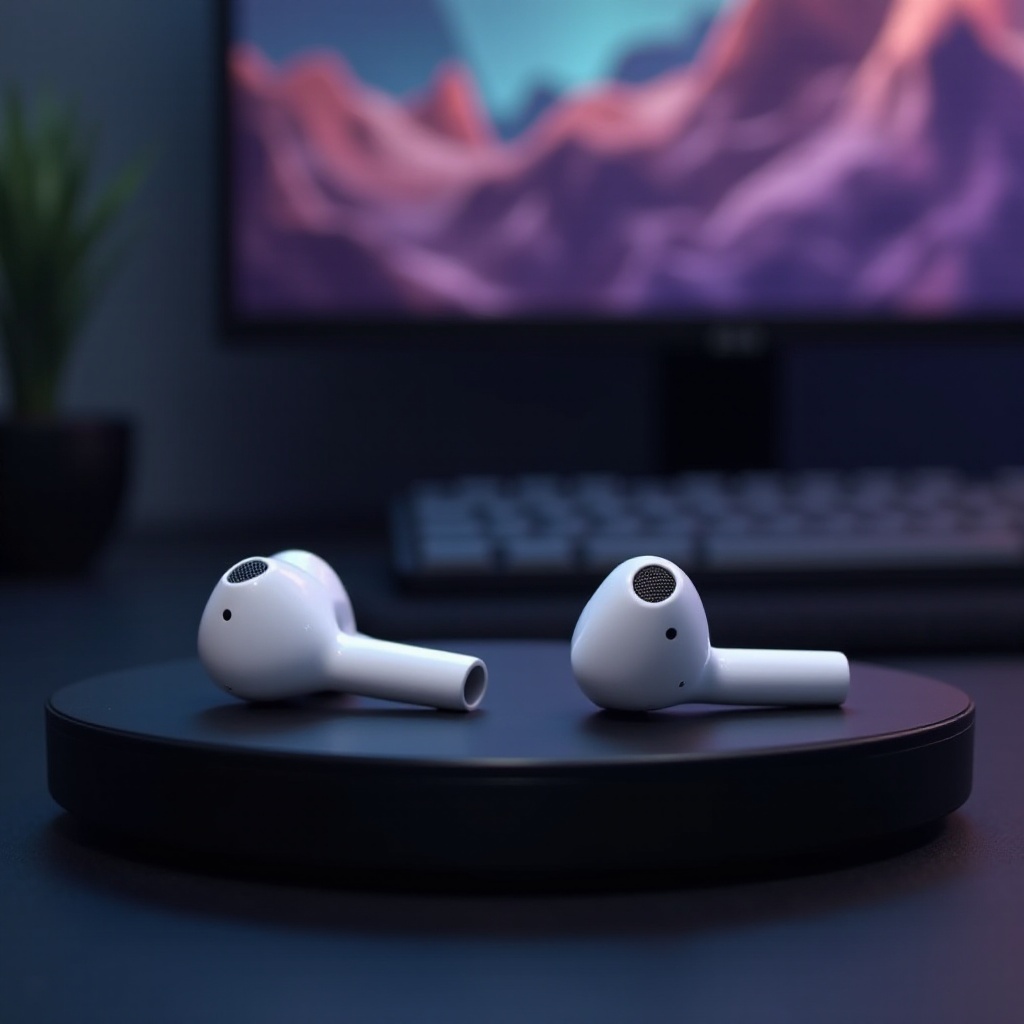
– Can AirPods Connect to Steam Deck? AirPods use Bluetooth to connect, functioning with devices that support this feature, including the Steam Deck. While they are optimized for Apple products, this compatibility allows gamers to benefit from superior audio quality on the go.
– Operating System Requirements for Steam Deck Bluetooth: The Steam Deck operates on SteamOS, a Linux variant, ensuring it supports Bluetooth device connections. Keeping your device’s OS updated ensures optimal functionality with peripheral devices like AirPods.
Familiarity with these compatibility aspects sets a solid foundation for a streamlined connection process in the next steps.
Step-by-Step Guide to Connecting AirPods
Connecting AirPods to the Steam Deck involves a series of straightforward steps:
1. Preparing Your AirPods and Steam Deck:
– Ensure your AirPods are fully charged.
– Restart both devices to clear previous connections.
- Enabling Bluetooth on Steam Deck:
- Go to the system settings of your Steam Deck.
-
Turn on Bluetooth under the connectivity options.
-
Pairing Your AirPods with Steam Deck:
- Open the AirPods case and press the button until the LED starts flashing white.
- On the Steam Deck, search for nearby Bluetooth devices.
- Choose your AirPods from the list to complete the pairing.
- Confirming Successful Connection: Verify the audio connection by playing a game or media; your Steam Deck should indicate that AirPods are connected.
Troubleshooting may be necessary if any issues arise during this process, which we’ll address in the following section.
Troubleshooting Common Issues
Although the connection process is usually seamless, sometimes problems can occur. Here’s how to resolve frequent issues:
– Addressing Connection Problems: If the AirPods don’t connect, restart both devices and ensure no other Bluetooth devices are interfering.
– Improving Audio Quality: Charge your AirPods and ensure there’s no physical obstruction between them and the Steam Deck.
– Dealing with Latency Issues: Minimize wireless interference by disabling other Bluetooth connections during gaming, and keep your software updated to the latest versions for both the Steam Deck and AirPods.
These solutions help maintain quality and reliable audio during your gameplay, pushing your experience to the next level.
Optimizing Your Audio Experience
With the connection established, focusing on optimizing settings will further improve your audio quality.
– Adjusting Audio Settings on Steam Deck: Access the audio menu to balance sound levels and fine-tune settings to match your preferences, enhancing immersion.
– Tips for Minimizing Latency: Ensure only necessary Bluetooth devices are connected and maintain a direct line of sight between the Steam Deck and AirPods to reduce disruptions.
With these optimizations, you’ll experience rich sound, ensuring an engaging gaming environment.
Battery and Performance Considerations
Efficient power management is key for prolonged sessions:
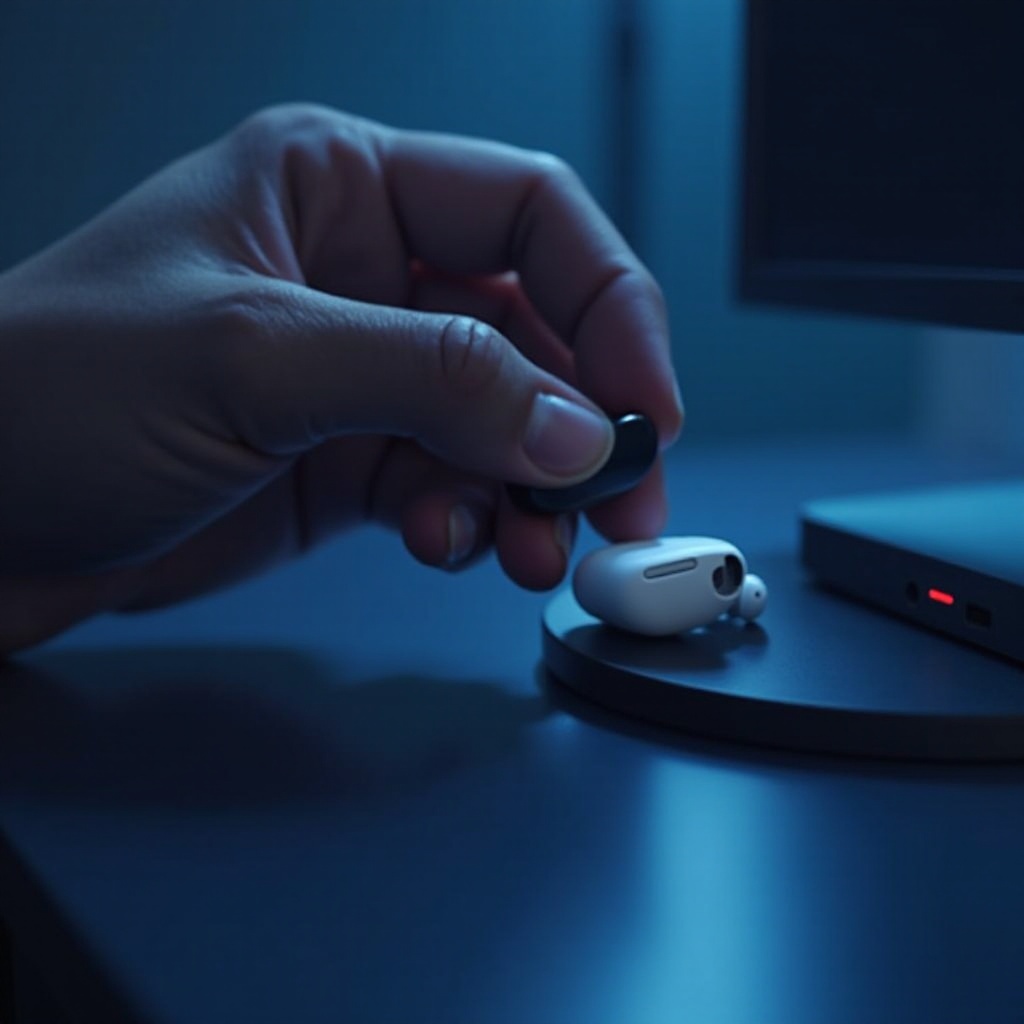
– Managing Battery Life on AirPods: When not in use, store AirPods in their charging case, and disable features like automatic ear detection to preserve battery power.
– How Bluetooth Affects Gameplay Performance: Although using Bluetooth minimally impacts device performance, conserving battery life by managing background apps and maintaining moderate screen brightness can maximize playtime.
Implementing these strategies ensures sustained performance for long-term use of both devices.
Conclusion
Connecting AirPods to your Steam Deck unleashes a superior auditory experience that complements the gaming platform’s expansive mobile capabilities. By following the provided steps, you secure stable, high-quality audio with negligible latency, enriching your overall gaming encounters. Dive deeper into your favorite games with confidence, backed by exceptional sound quality.
Frequently Asked Questions
Can AirPods be Used for In-Game Chat on Steam Deck?
Yes, AirPods can be configured for in-game chat. Adjust the microphone settings on your Steam Deck to ensure proper voice input recognition.
What Should I Do if My AirPods Keep Disconnecting?
Ensure AirPods are charged and within range. Try unpairing and pairing again if disconnections persist. Make sure you’re running the latest firmware.
Are There Any Alternative Headphones Recommended for Steam Deck?
Alternatives like the Sony WH-1000XM4 and Bose QuietComfort 35 II offer excellent sound quality and low latency, suitable for gaming on the Steam Deck.